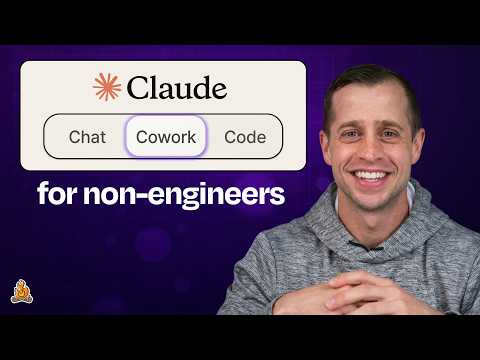
Claude Cowork tutorial for non-engineers | JJ Englert (Tenex)
JJ Englert (guest), Claire Vo (host)
In this episode of How I AI, featuring JJ Englert and Claire Vo, Claude Cowork tutorial for non-engineers | JJ Englert (Tenex) explores a non-engineer’s guide to Claude Cowork projects, skills, and automation Cowork is positioned as a practical “get work done” layer between simple chat and full developer tools, letting non-engineers orchestrate AI agents with a familiar UI.
A non-engineer’s guide to Claude Cowork projects, skills, and automation
Cowork is positioned as a practical “get work done” layer between simple chat and full developer tools, letting non-engineers orchestrate AI agents with a familiar UI.
Projects are explained as ordinary computer folders plus shared memory, enabling consistent context, faster prompts, and better outputs across multiple related tasks.
JJ shows how connectors (Gmail, Slack, Calendar, Drive, Notion, etc.) let Cowork both take actions and ingest personal/work data to personalize skills like email drafting in your own voice.
The episode walks through building a “daily operating system” from scratch: creating a project, generating reusable skills (email style, thinking partner, multi-persona review), and chaining workflows.
They emphasize progressive trust and permissioning—trading information for productivity—using granular connector permissions and “draft-only” safeguards as adoption ramps up.
Key Takeaways
Treat a Cowork project as a folder-backed workspace with memory.
Create a dedicated folder for any initiative (work or personal), attach it as a Cowork Project, and Cowork will retain shared context across chats/tasks so you don’t restart from scratch each time.
Get the full analysis with uListen
Start with a “brain” file to stabilize quality and tone.
A simple markdown file describing your preferences, collaborators, and working style gives Cowork durable context and reduces repetitive prompting; it’s transferable across tasks and projects.
Get the full analysis with uListen
Use a workspace map to cut token usage and improve navigation.
Have Claude summarize the folder structure into a map so it can jump directly to the right subfolders/skills instead of re-reading everything, improving speed and consistency.
Get the full analysis with uListen
Connectors unlock both automation and personalization.
Connecting Gmail/Slack/Calendar/Drive/Notion enables actions (drafting, organizing, prep) and also allows Cowork to learn patterns (e. ...
Get the full analysis with uListen
Create an email-writing skill from your sent mail—then enforce “draft-only.”
JJ demonstrates analyzing the last 30 days of sent emails to produce a voice/style guide skill, while adding project instructions like “Never send; only draft for review” to manage risk.
Get the full analysis with uListen
Build a reusable “thinking partner” skill that asks clarifying questions.
A single mentoring/decision-support skill can cover responses, career decisions, and feedback framing; explicitly instruct it to ask questions when unclear to avoid shallow outputs.
Get the full analysis with uListen
Use sub-agents as a “pre-feedback roundtable” for remote work.
A sub-advisory skill spins up multiple personas (boss/engineering partner/customer or ICP segments) to critique drafts before expensive synchronous reviews, improving quality and confidence.
Get the full analysis with uListen
Notable Quotes
“Even though you might not be a developer, you're now an AI orchestrator.”
— JJ Englert
“A project is a folder on your computer.”
— JJ Englert
“Without that workspace map, sometimes Claude has to ingest all of that stuff, which takes up more tokens.”
— JJ Englert
“All my friends are agents.”
— Claire Vo
“It’s a trade of information for productivity… think about this as progressive trust.”
— Claire Vo
Questions Answered in This Episode
What exactly should go into a “brain” markdown file to get better Cowork outputs, and what should you avoid including for privacy/security?
Cowork is positioned as a practical “get work done” layer between simple chat and full developer tools, letting non-engineers orchestrate AI agents with a familiar UI.
Get the full analysis with uListen AI
When should you use a Project versus a one-off Task in Cowork, and what kinds of work degrade when you mix too many tasks into one Project’s shared memory?
Projects are explained as ordinary computer folders plus shared memory, enabling consistent context, faster prompts, and better outputs across multiple related tasks.
Get the full analysis with uListen AI
Can you show a concrete template for a “sub-advisory” skill (boss/peer/customer) and how you’d keep personas realistic without overfitting or hallucination?
JJ shows how connectors (Gmail, Slack, Calendar, Drive, Notion, etc. ...
Get the full analysis with uListen AI
What connector permission settings do you recommend for beginners (e.g., Gmail read-only + draft creation, always-ask vs always-allow), and how do you phase access over time?
The episode walks through building a “daily operating system” from scratch: creating a project, generating reusable skills (email style, thinking partner, multi-persona review), and chaining workflows.
Get the full analysis with uListen AI
How do you evaluate whether a skill is actually improving outcomes (email response time, newsletter engagement, fewer revisions), and how do you feed “good vs bad” examples back into the system?
They emphasize progressive trust and permissioning—trading information for productivity—using granular connector permissions and “draft-only” safeguards as adoption ramps up.
Get the full analysis with uListen AI
Transcript Preview
One of the things I love about having this project system, you're orchestrating now. Even though you might not be a developer, you're now an AI orchestrator. You can run many agents at once and have this top level view to be able to just quickly see which agent needs your attention and just give them those permissions or to pop back in.
I don't know, this is like very sad. All my friends are agents. I'm a solo founder. It is like very hard to just me by myself ensure that all my ideas are great.
When you use sub-agents, it will spin up three different agents, and each of those agents can have their own persona with like a fresh contacts window, meaning like fresh perspective to go and look at your work in an objective way.
If you're a product manager, build it and like put your boss in there, your engineering partner, and your customer and say, "Every PRD, review from these three points of view and give me feedback." If you're in marketing, your ICP. I think there's just a lot of places where this multi-view feedback mechanism is super useful.
One hundred percent. We could take this a step further and say, "Hey, create this sub-advisory skill," maybe three of the agents. Like one agent is literally your boss that you send an agent to go research who your boss is, their role, their perspective, and have them simulate the feedback that they might give you before you even go to them. The sky's the limit here. You just gotta tell Claude what to do, and it's gonna go do it for you.
[upbeat music] Welcome back to How I AI. I'm Claire Vo, product leader and AI obsessive here on a mission to help you build better with these new tools. When Claude Cowork first came out, I was pretty much a skeptic, but I have been hearing more and more that Cowork is the way that everybody I know, especially those who are a little less technical than us engineers, get their daily work done, which is why I'm so excited to have JJ Englert here from Tenex, who is a Cowork power user but is gonna take a step back and show us how to zero to one on Anthropic's new Get Work Done tool. Let's get to it. This episode is brought to you by Tines, the intelligent workflow platform powering the world's most important work. Business moves faster than the systems meant to support it. Teams are stuck with repetitive tasks, scattered tools, and hard-to-reach data. AI has huge promise but struggles when everything underneath is fragmented. Tines fixes that. It unifies your tools, data, and processes in one secure, flexible platform, blending agentic AI, automation, and human-led intervention. Teams get their time back, workflows run smarter, and AI actually delivers real value. Customers now automate over one point five billion actions every week. Tines is trusted by companies like Canva, Coinbase, Databricks, GitLab, Mars and Reddit. Try Tines at tines.com/howiai. JJ, welcome to How I AI.
Install uListen to search the full transcript and get AI-powered insights
Get Full TranscriptGet more from every podcast
AI summaries, searchable transcripts, and fact-checking. Free forever.
Add to Chrome